
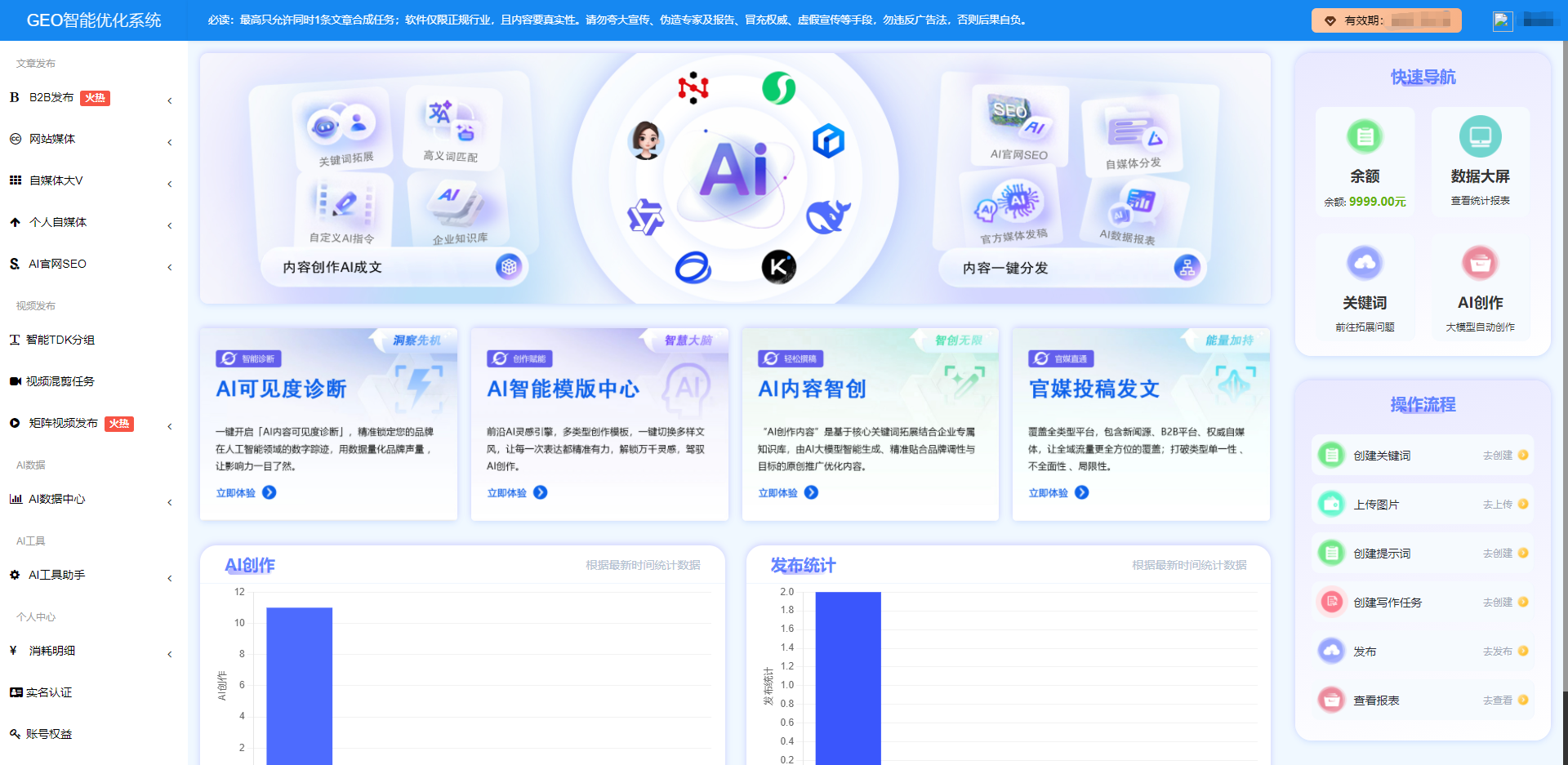
1. Create Keywords
Path: Left menu: AI Material Source Power → Keywords → Add
Fill in Primary Keyword: Only one allowed, no less than 3 characters (Example: Plus-size hoodie).
Fill in Brand Awareness: A brand mission statement or slogan (Example: Aifu Technology).
Choose one of three generation methods: ① AI Add for Me (Recommended): The system automatically generates a batch of "Brand + Question Word" search queries, such as "Dawang Sanitary Ware manufacturer rankings," "Which Dawang Sanitary Ware brand is durable," "Which factory for Dawang Fish is strong" — this is exactly how users most often ask in AI; ② Manual Batch Add: In the "Manual Batch Combination" popup, generate by combining three columns: Prefix (one per line, 0–20) + Main Word (must be the primary keyword, 1–20) + Suffix (one per line, 0–20); ③ Keyword Tagging Tool: Assists with word selection.
After the checklist is correct, click - Confirm - Save.
2. Improve Enterprise Knowledge Base
Path: ① AI Material Source Power → Enterprise Profile Gallery → Add → Material List → Add (upload images, brand logo/office photos, etc.)
② AI Material Source Power → Enterprise Knowledge Base → Add
3. Configure Writing Titles / Creation Instructions
Path: AI Material Source Power → Writing Titles → Add
Instruction Name: Custom (Example: Plus-size hoodie article);
Task Type (choose one of three): Article Creation / Title Creation / Traffic Replication;
Instruction Content: Custom (can provide article instruction templates, can apply directly and modify);
Click - Confirm - Save. Can be called directly when creating writing tasks later.
4. Create AI Writing Task
Path: AI Article Writing → AI Writing Task → Add
5. Authorize Publishing Accounts
Path: Personal Media → Account Authorization (must first install and log in to the GEO Assistant desktop client)
Open GEO Assistant → Account Management → Select platform to authorize;
Select the platform to authorize in the Platform Matrix (supports NetEase, Sohu, WeChat Official Accounts, Personal Library, Penguin Media, Zhihu, Xiaohongshu, Douyin, CSDN, etc.);
Click Add Account: Select platform → Fill in account/password → Select authorization method (Account/Password authorization / QR code authorization) → Confirm;
The account list shows the authorization status and expiration time of each account. There will be a red reminder upon expiration; please renew in time.
6. Create Publishing Task and Start
Path: Personal Media → Publish Task → Add, then start in GEO Assistant "Publish Management"
💡Start in GEO Assistant "Media Management":
Set in Publish Configuration: Auto-open browser (On/Off), Post publishing interval (seconds, Example: 40) → Save configuration;
Click ▶ Start Publishing, the client will automatically open the browser and publish articles platform by platform; you can ⏹ Stop Publishing at any time;
View the real-time process in Publish Log (can be exported), and the number of successful publications is in Publish Statistics (Articles / Success / Failure / Total).
7. Bind LLM Accounts
Path: GEO Assistant → Model Management
Sequentially select Doubao / ERNIE Bot / Kimi / Tencent Yuanbao / DeepSeek [Add Authorization], and log in to the corresponding platform account in the pop-up authorization window (account password or QR code);
After successful authorization, the account shows Connected; if abnormal, you can use the Repair button;
This step is the prerequisite for visibility detection: the system will use these accounts to check your brand's indexing status on various AI platforms.
8. View Indexing Data
Path: AI Data Center → Data Reports
Frequently Asked Questions (FAQ)
Are there any industries you suggest not to do? Private medical care, finance, games, lotteries, non-owned brands without authorization selling others' brands, K12 education, illegal crimes, black five categories, gray industries, and other industries that violate advertising law are not recommended. Costs are higher than ordinary words and carry risks (if risk industries are involved, you bear the consequences).
How to configure the Google path in the client? ① Desktop - move the mouse to the Google icon - right-click - click Properties, copy the Target (without quotes) for example: C:\Program Files\Google\Chrome\Application\chrome.exe ② Fill the path into Client - Help - Configuration - System Configuration - Google Browser Path.
The client shows: No publish data, what to do? Troubleshoot these three reasons: ① Is the web page's feeding task not started? ② The media accounts selected for the feeding task have already reached today's publishing limit, you can check the number of publications in the feeding account list; ③ The articles selected for the feeding task have all been published before; if the task chooses deduplication, there will be no articles to publish.